> ## Documentation Index
> Fetch the complete documentation index at: https://docs.brewit.ai/llms.txt
> Use this file to discover all available pages before exploring further.
# Notebooks
> Discover how to leverage the Notebooks for creating dynamic reports, documentation, and data visualizations with an AI-assisted editor.
**Enhance Your Report** The Notebooks feature is a versatile tool that
empowers you to create comprehensive reports, insightful documentation, and
interactive data visualizations, all within an AI-enhanced, Notion-like
editor.
## Introduction
The Notebooks feature introduces a powerful way to document, analyze, and visualize data in Brewit.ai. It combines a user-friendly editor with AI capabilities for generating charts, summarizing reports, and providing insights. Whether you're compiling research, drafting project documentation, or generating data-driven reports, Notebooks can streamline your workflow and enhance the clarity of your presentations.
## Creating a Notebook
Starting with a Notebook involves understanding its core features and how to utilize them effectively. Here's how you can maximize the potential of Notebooks in your projects:
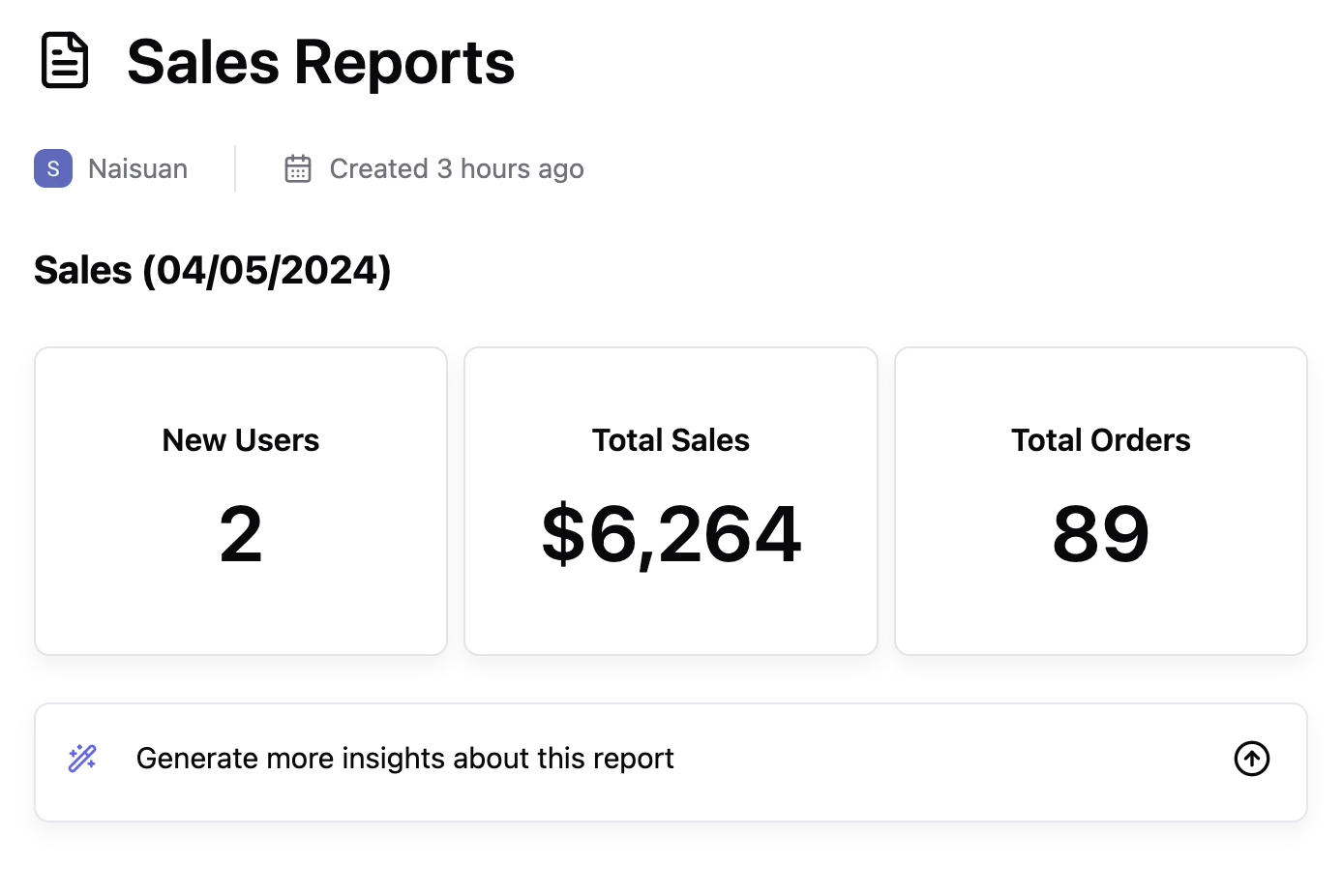
Begin by creating a new notebook. Decide on the structure based on the level
of detail and the hierarchy of information you plan to include.
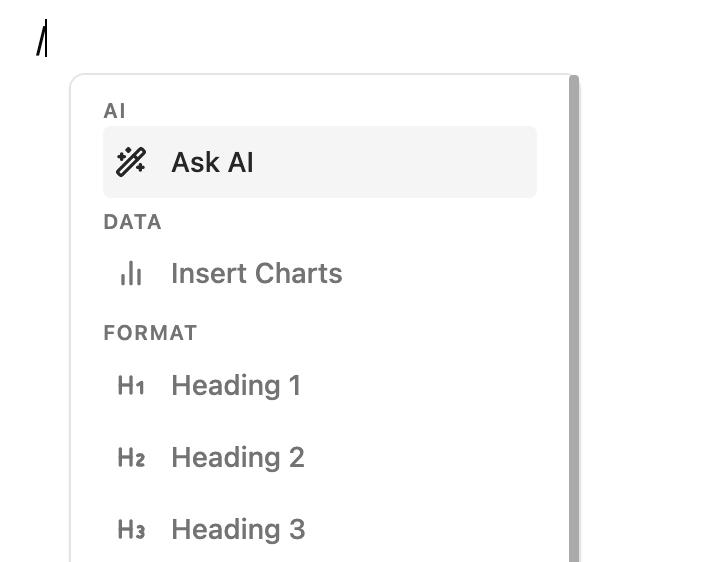
Utilize the AI-powered editor to type out your documentation or report. You
can ask the AI for suggestions, summarizations, or even to generate charts
based on the data you input or describe.
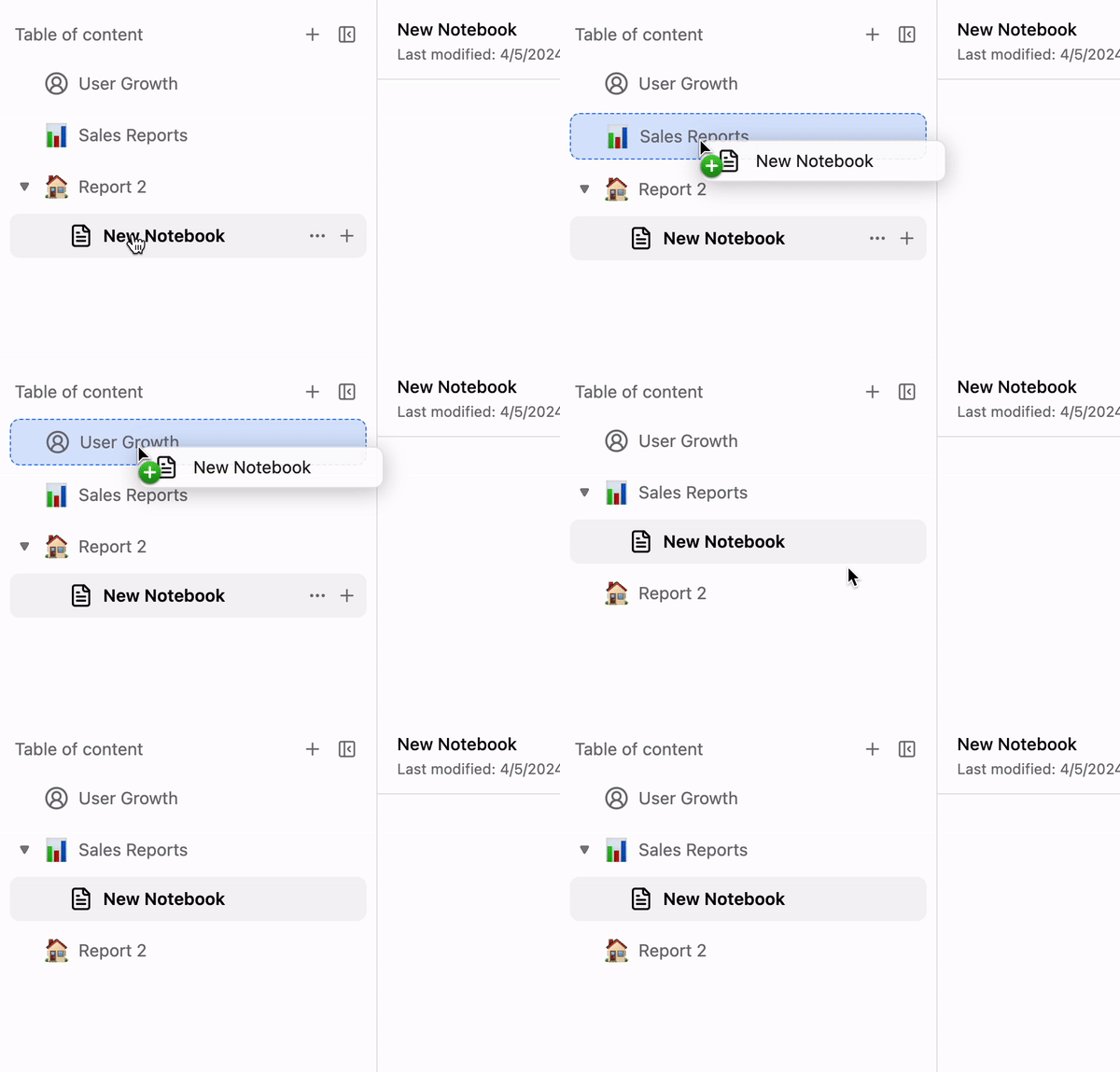
 Structure your notebook using up to three layers of notebooks for a
hierarchical organization. This allows you to manage complex documentation
or projects with ease, ensuring that all related information is accessible
and neatly organized.
Structure your notebook using up to three layers of notebooks for a
hierarchical organization. This allows you to manage complex documentation
or projects with ease, ensuring that all related information is accessible
and neatly organized.
 ## Mode
Customizing and managing your notebooks is straightforward in Brewit.ai:
Switch to view mode to see how your notebook appears to others, helping you
ensure that the layout and content are perfectly aligned with your
objectives.
Enter the edit mode to edit content, update chart configurations, or modify
notebook properties.
This is still in development.
Use the slides view to present your notebook as a slideshow, making it easy
## Sharing and Collaboration
Notebooks are designed for collaboration. Share your notebooks with team members to provide them with valuable insights, or use shared dashboards as a discussion point in team meetings and strategy sessions.
Only the owner of a notebook can edit it. However, you can share your notebook
with other users to view and interact with it.
## Mode
Customizing and managing your notebooks is straightforward in Brewit.ai:
Switch to view mode to see how your notebook appears to others, helping you
ensure that the layout and content are perfectly aligned with your
objectives.
Enter the edit mode to edit content, update chart configurations, or modify
notebook properties.
This is still in development.
Use the slides view to present your notebook as a slideshow, making it easy
## Sharing and Collaboration
Notebooks are designed for collaboration. Share your notebooks with team members to provide them with valuable insights, or use shared dashboards as a discussion point in team meetings and strategy sessions.
Only the owner of a notebook can edit it. However, you can share your notebook
with other users to view and interact with it.